openSUSE 11.1-1 for X1000 "experimental"
Posted: Sat Sep 28, 2013 11:58 pm
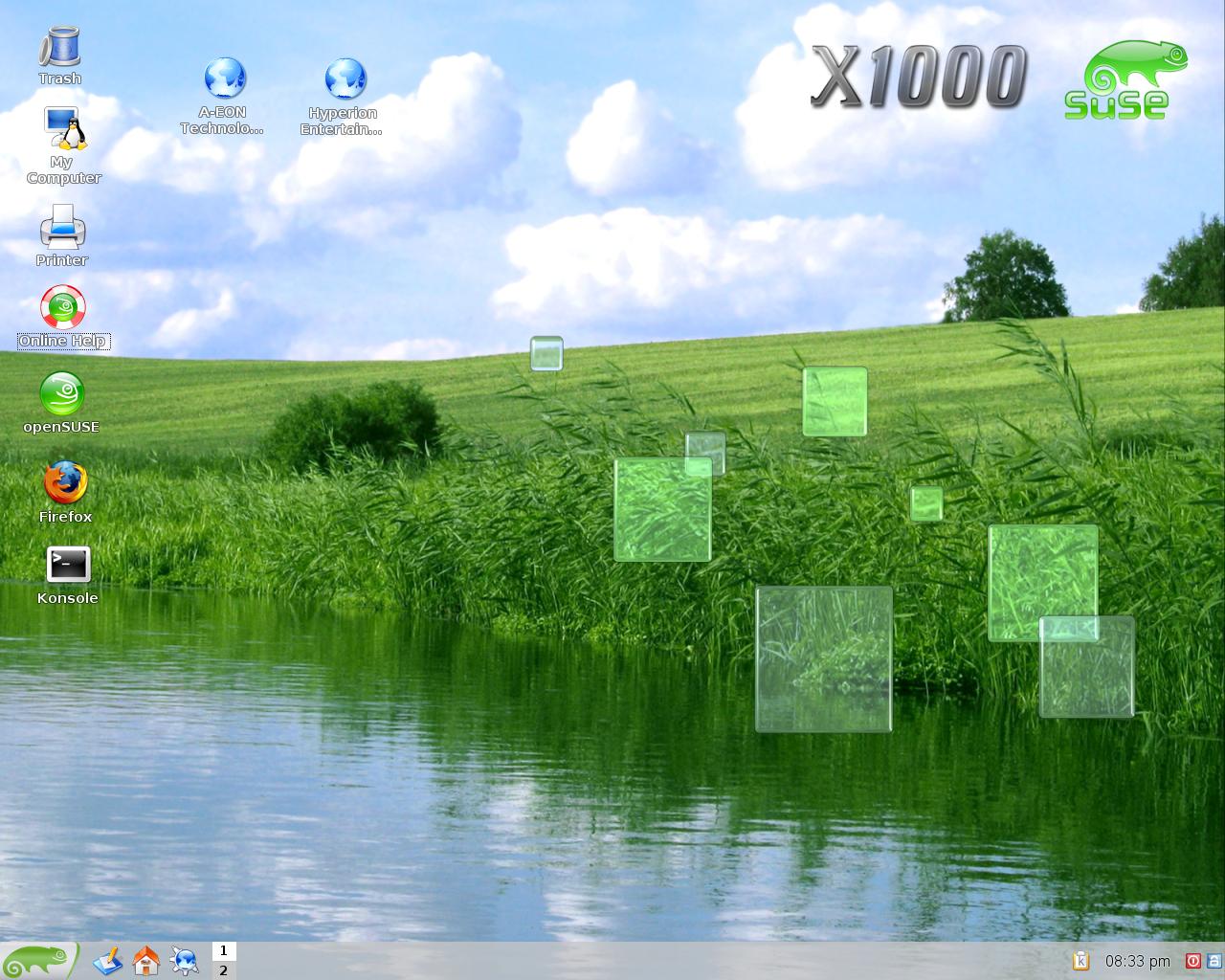
Hi there,
I've packed my openSUSE installation in a tar.gz file.
Download: openSUSE-11.1-1-x1000-ppc64.tar.gz "experimental"
Known problems:
- SB600 Soundchip doesn't work
- 3D acceleration doesn't work
Here are the installation instructions for openSUSE (based on the Fedora installation instructions by Pat Wall. Thanks to Pat
 )
)You must have another Linux distribution already installed such as Debian, MintPPC, Ubuntu etc in
order to install openSUSE 11.1-1. Login to your current Linux distribution, e.g. Debian or
Ubuntu and create an ext3 partition of at least 20GB using GParted or similar tool of your choice.
You should also create a Linux swap partition.
Login to your current Linux distribution, e.g. Debian or Ubuntu, and open a terminal to complete
the following steps.
Become the root user by entering
Code: Select all
suEnter your root password <return>
Download the kernel tarball from the following URL: kernel-3.10.3-6.17-2-powerpc-x1000-ubuntu.tar.bz2
Unpack the kernel tarball and copy it to your CF Card or USB Stick so it will be available to select
when booting from CFE:
Code: Select all
tar jxvf kernel-3.10.3-6.17-2-powerpc-x1000-ubuntu.tar.bz2<return>
Code: Select all
cp /path/to/vmlinux-3.10.3-2-ubuntu /path/to/cfcardCreate a mount point on which to mount the openSUSE tarball:
Code: Select all
mkdir /mnt/opensuseMount the partition where you want to install openSUSE.
Code: Select all
mount -t ext3 /dev/sdXX /mnt/opensuseDownload the openSUSE tarball from the following URL: openSUSE-11.1-1-x1000-ppc64.tar.gz
(The compressed image is 1.1GB in size and will expand to 3.1GB )
Copy the tar.gz file to the partition where you want to install openSUSE.
Code: Select all
cp openSUSE-11.1-1-x1000-ppc64.tar.gz /mnt/opensuseChange to /mnt/opensuse.
Code: Select all
cd /mnt/opensuseUnpack the tarball.
Code: Select all
tar zxvf openSUSE-11.1-1-x1000-ppc64.tar.gz<return>
Configure fstab to reflect your system e.g. replacing the strings with your own root partition
and swap partition respectively. In this example /dev/sdb2 is the root partition and /dev/sdb3 is the
swap partition.
Code: Select all
nano -w /mnt/opensuse/etc/fstabCode: Select all
/dev/sdb2 / ext3 acl,user_xattr 1 1
/dev/sdb3 swap swap defaults 0 0
Code: Select all
rebootBooting openSUSE
To boot openSUSE at the CFE prompt you will need to do the following:
Remember to substitute the root partition (/dev/sdb2 in this example) that you installed openSUSE on.
(Note this is typed as a single line at the CFE prompt)
Code: Select all
CFE> setenv bootargs "root=/dev/sdb2"Code: Select all
CFE> boot -elf -noints -fatfs cf0:vmlinux-3.10.3-2-ubuntuCode: Select all
CFE> boot -elf -noints -fatfs usbdisk0:vmlinux-3.10.3-2-ubuntuopenSUSE will now boot to the “Shell Login” Screen.
Login into openSUSE with the administrator account root.
The default root password is: amigaone (all lower-case)
Change the root password to the password of your choice.
Code: Select all
passwd<return>
Enter your new password and confirm.
While still logged in as root you will need to setup X11.
Code: Select all
sax2Configure your display, the resolution and the colors.
Save you configuration.
Start the KDE Display Manager with
Code: Select all
kdmThe default password is: amigaone (all lower-case)
Have a lot of fun with openSUSE. Be aware, that openSUSE is experimental and isn't supported.